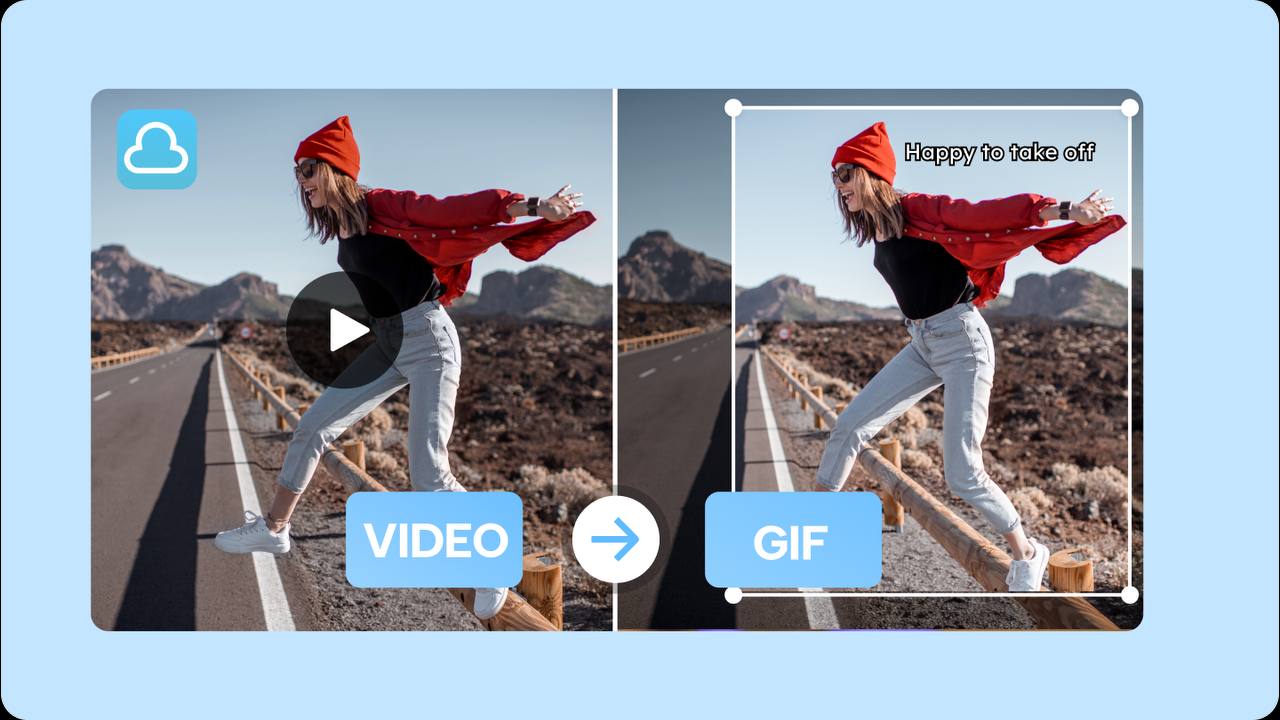
Why Most GIF Tools Are Annoying
The GIF landscape is full of tools that promise "free" but then slap their logo in the corner of every frame. Others require you to create an account just to download a single file. A few upload your video to remote servers, which is a privacy problem if the clip contains anything personal.
The alternative — desktop software like Photoshop or GIMP — has a steep learning curve and still requires you to own a license. For creators who just want to clip a funny moment or create a product demo loop, that's overkill.
What you actually need is a tool that's instant, private, and completely free. That's exactly what Vootkit's GIF Maker is built to do.
Step-by-Step: Make a GIF from a Video
This takes under two minutes once you know the steps.
Step 1 — Open Vootkit's GIF Maker
Navigate to Vootkit and select GIF Maker from the tools panel. No sign-up required.
Step 2 — Drop in Your Video
Drag your video file into the upload area, or click to browse. Vootkit supports MP4, MOV, WebM, AVI, and MKV. The file is loaded locally — nothing is sent to a server.
Step 3 — Trim Your Clip
Use the timeline handles to select the exact portion you want in your GIF. For best results:
- Keep it under 10 seconds for social media.
- The shorter the clip, the smaller the file size.
- Pick the highest-energy moment — GIFs should loop naturally.
Step 4 — Set Frame Rate and Resolution
This is where most people go wrong. GIFs are surprisingly large because every frame is stored as a full image. Two settings control the final file size:
- Frame rate: 10–15 fps looks smooth. Going above 24 fps adds size without visible quality gain.
- Resolution: 480px wide is fine for Twitter, Slack, and messaging apps. Only go to 720px+ if you need it for a landing page.
Step 5 — Export and Download
Click Create GIF. Processing happens locally using WebAssembly — it's fast and completely private. When it's done, your GIF downloads automatically. No watermarks, no popups.
GIF Settings Cheat Sheet
Here's a quick reference for the most common GIF use cases:
| Use Case | Width | FPS | Target Size |
|---|---|---|---|
| Twitter/X reply | 480px | 12 | < 5 MB |
| Slack reaction | 320px | 10 | < 2 MB |
| Product demo | 640px | 15 | < 10 MB |
| Meme / viral | 480px | 15 | < 8 MB |
Alternative Methods (and Why They're Worse)
There are other ways to create GIFs. Here's the honest comparison:
GIPHY or Imgflip
Popular, but your video gets uploaded to their servers and the GIF is public by default. They also compress quality quite aggressively. Fine for memes, not ideal for anything private or professional.
Photoshop
Full control over every frame, dithering, and palette. But requires a paid Adobe subscription and takes 10x longer than a browser tool. Overkill for most creators.
FFmpeg (command line)
Incredibly powerful and produces the best quality GIFs when tuned right. The downside: it requires a terminal, installation, and learning the right flags. Not beginner-friendly.
Vootkit GIF Maker
No install, no sign-up, no watermark, no uploads. Produces clean GIFs with the right settings. The obvious choice for 95% of creators.
Why Use Vootkit for GIF Conversion?
Most GIF tools run on cloud servers — they take your video, process it remotely, and return a file. That's slow, it requires trust, and it creates a privacy risk. Vootkit is different:
- 100% on-device: Your video never leaves your computer. We can't see your footage even if we wanted to.
- WebAssembly speed: FFmpeg compiled to WASM runs at near-native speed in your browser. Most GIFs complete in seconds.
- No watermarks, ever: Not even on the free plan, because there's only one plan — free.
- Works offline: Once the tool is loaded, you don't need an internet connection to convert.
Frequently Asked Questions
What is the best free GIF maker with no watermark?
Vootkit's browser-based GIF maker creates watermark-free GIFs completely free. It runs locally in your browser, so no account or upload is needed. Other strong options include GIPHY (adds a logo), Ezgif (upload-based but capable), and FFmpeg for power users.
What video formats can I convert to GIF?
Vootkit supports MP4, MOV, WebM, AVI, and MKV. For best results, use MP4 (H.264) as your source — it's the most compatible format and tends to produce the cleanest GIFs.
Why is my GIF file so large?
GIFs store each frame as a separate indexed image, making them inherently much larger than equivalent video. To reduce size: (1) Lower frame rate to 10–15 fps. (2) Reduce resolution — 480px wide is usually enough. (3) Shorten the clip. (4) Reduce colors in the palette if your tool supports it.
Can I make an animated GIF from a YouTube video?
You can download a YouTube video using a third-party tool (check local copyright laws), then convert it using Vootkit's GIF Maker. Alternatively, some platforms like Giphy have direct YouTube import — but make the GIF public. Only convert content you have rights to use.
How long should a GIF be?
For social media, keep GIFs under 10 seconds. The sweet spot is 3–6 seconds — long enough to convey the moment, short enough to loop seamlessly. Twitter supports GIFs up to 15MB, Slack up to 100MB, and most messaging apps handle 5–10MB comfortably.
Is there a difference between GIF and WebP animation?
Yes. Animated WebP files are typically 30–50% smaller than equivalent GIFs at the same quality. However, GIF has universal support across every platform and chat app — WebP support varies. For maximum compatibility, use GIF. For web pages and modern browsers, consider animated WebP or even a short looping MP4 video instead.
Conclusion
Making a GIF from a video doesn't have to mean giving up your privacy, sitting through watermarks, or paying a subscription. With Vootkit's browser-based GIF Maker, the whole process takes under two minutes and produces a clean, shareable result.
The key settings to remember: trim tight, keep frame rate at 10–15 fps, and scale down the resolution. That combination gives you a great-looking GIF at a file size that won't break any platform limits.


